Building a Break Reminder With Zero Permission Warnings
By Raphael Ben-Hamo, Digital Relief
6 min read · Published October 13, 2026
Checked against Chrome's developer documentation, linked below.
Digital Relief is a free Chrome extension that reminds you to rest your eyes. Every 20 minutes of active screen time, it asks you to look far away for 20 seconds.
That sounds like a weekend project. A timer and a popup. In practice, most of the work went into two things you never see: what the extension is allowed to do, and how it keeps time when Chrome keeps shutting it down.
This is a write-up of the decisions, for anyone building something similar.
Permissions were the first design decision
When you install an extension, Chrome may show a dialog listing what it can do. Some permissions show a warning there; others don't.
For a small wellness tool, that dialog matters. If a break reminder says it can read data on websites you visit, a lot of people will reasonably close the tab.
Chrome's own guidance points the same way. It asks developers to request only the permissions that support the extension's main purpose, and to request optional permissions at runtime so users choose which features to enable (permission warning guidelines).
The same page notes a second reason to keep the list short. If an update adds a permission that triggers a warning, Chrome disables the extension until the user accepts it. Starting small means you never have to ask for that.
So we set one rule early: the install dialog shows no warnings at all.
The install-time set: four permissions, no warnings
Digital Relief ships with Manifest V3 and asks for exactly four permissions at install. According to Chrome's permissions list, none of them displays a warning:
- alarms runs the timer.
- storage keeps settings and break history.
- idle tells us when you've stepped away or locked the screen.
- offscreen lets us play the chime, because the service worker can't play audio itself.
There's no tabs, no <all_urls>, and no scripting. The extension never injects anything into the pages you visit.
Optional permissions, asked at runtime
Two features need more access, so they're optional and only requested when you turn them on.
Notifications. You can choose a system notification as your reminder style. The notifications permission shows a "Display notifications" warning, so we don't ask for it at install. We request it only if you pick that style.
Call auto-pause. If you turn on "Pause during video calls", the extension asks for access to four hosts:
"optional_host_permissions": [
  "https://meet.google.com/*",
  "https://*.zoom.us/*",
  "https://teams.microsoft.com/*",
  "https://teams.live.com/*"
]
With that granted, it checks whether a call tab is open, using only the tab's address. A Google Meet room has a recognisable path, and so do Zoom web calls. Teams is trickier, because people keep the web app open all day, so a Teams tab only counts while it's playing audio.
It never reads or changes page content. If you never turn the feature on, the extension never even asks.
A service worker you can't trust to stay alive
Manifest V3 replaces the always-on background page with a service worker, and Chrome stops it when it's idle. Per the service worker lifecycle docs, Chrome normally terminates it after 30 seconds of inactivity, and any global variables are lost when that happens.
For a timer, that rules out the obvious approach. You can't hold a countdown in memory and wait 20 minutes.
So the timer is a pure state machine. The state lives in storage.local: active time since the last break, the current phase (working, due or on a break), and when the last tick happened. A one-minute alarm wakes the worker, which loads the state, runs one tick, saves the result, and goes back to sleep.
const delta = Math.min(gap, MAX_TICK_MS); // MAX_TICK_MS = 2 minutes
Idle-state changes also trigger a tick, so stepping away is noticed straight away rather than at the next alarm. Every event handler runs through a small queue, so two ticks can't race each other on the same stored state.
Sleep, stalls and phantom breaks
The alarms docs explain what happens when a laptop sleeps. Alarms don't wake the device. When it wakes, missed alarms fire, and a repeating alarm fires at most once and is then rescheduled.
That creates a trap. If you simply add "time since the last tick" to the active-time counter, an hour of sleep becomes an hour of screen time, and the moment you open the lid you get a break reminder you didn't earn.
Two rules prevent that:
- A single tick adds at most two minutes. A longer gap means sleep or a stalled worker, not two hours of staring at the screen.
- Five minutes away counts as a break. If you were idle, locked or asleep for five minutes or more, the timer resets as if you'd taken a break.
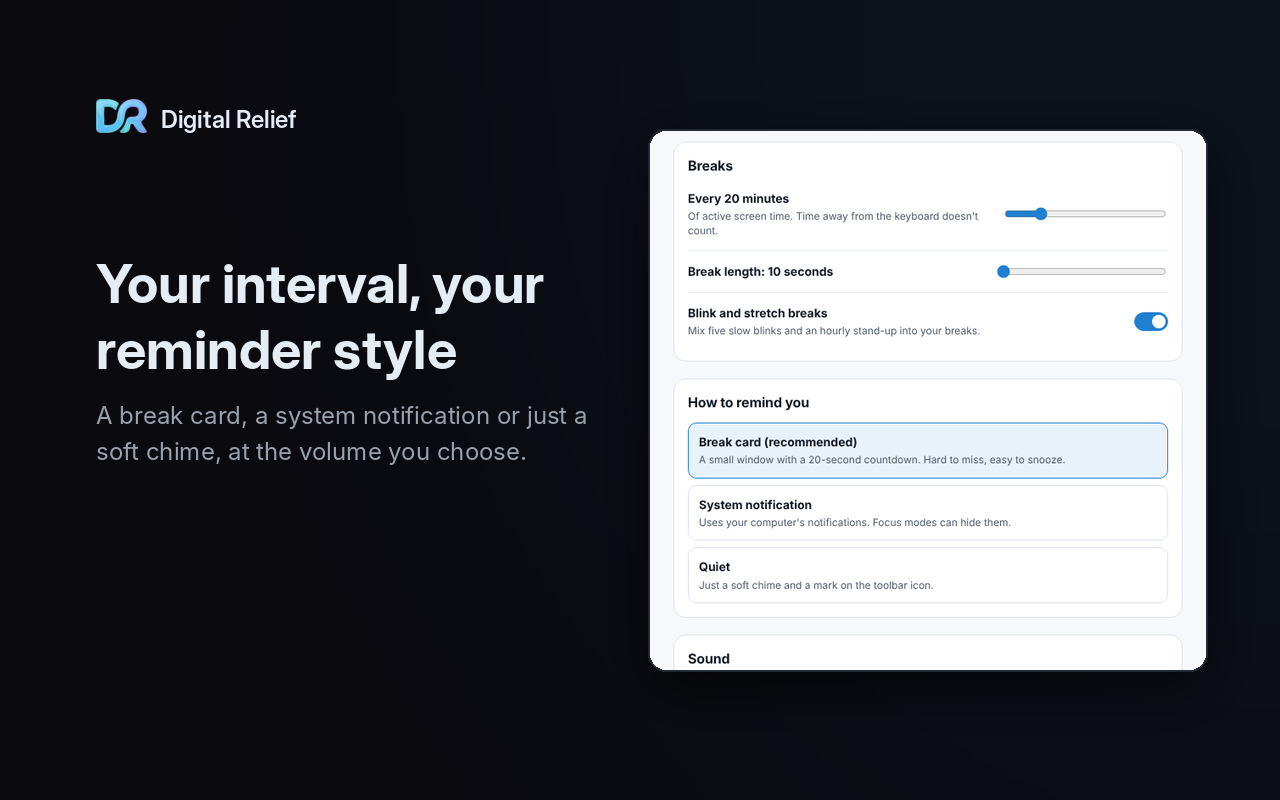
Idle comes from Chrome's idle API. By default you count as away after two minutes without input, and you can change that in settings.
Full screen, meetings and second chances
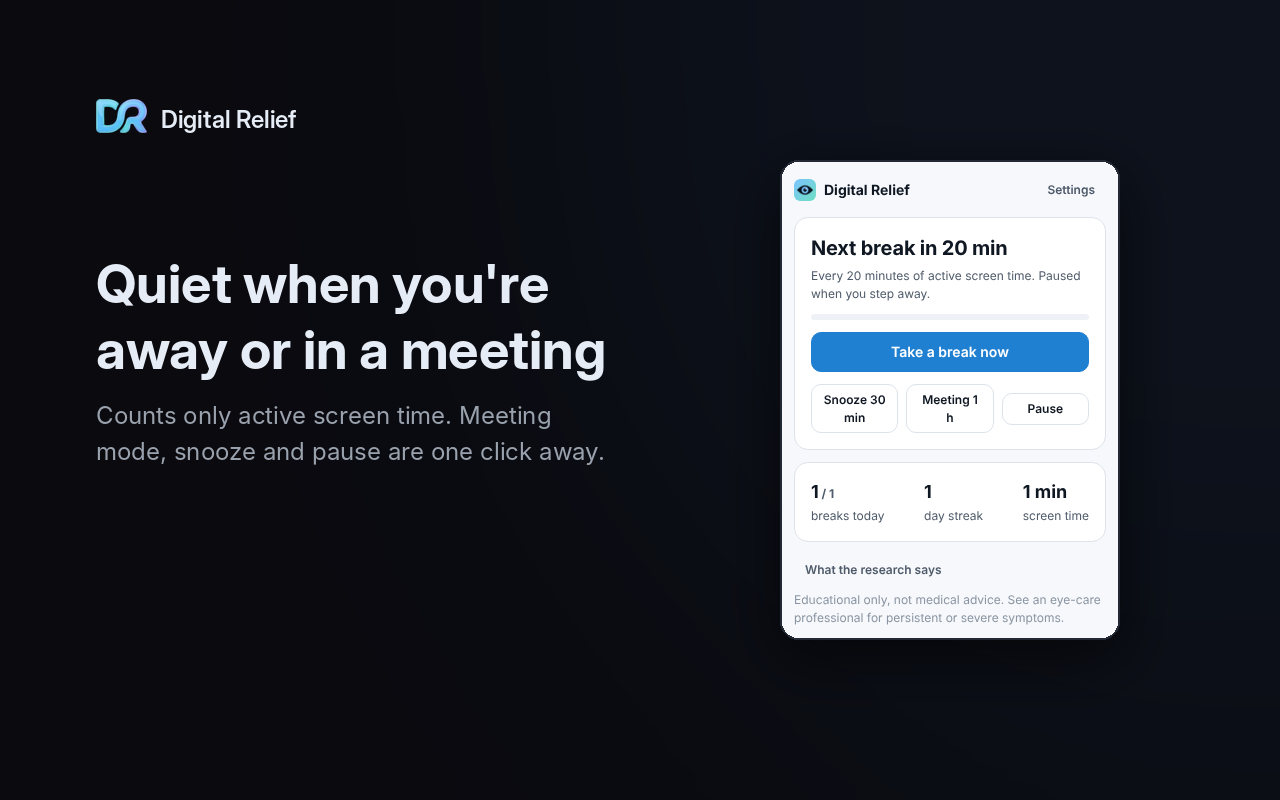
Nobody wants a break card on top of their slides. So, by default, if the focused Chrome window is in full screen, a due reminder waits for up to 10 minutes and then shows anyway.
There's also meeting mode, which holds reminders for an hour, and snooze, which holds them for 30 minutes. Keyboard shortcuts cover the common cases: Alt+Shift+B for a break now, Alt+Shift+S to snooze.
If you ignore a reminder, it nudges you once more after 10 minutes. After 20 minutes it gives up and counts the break as skipped, rather than nagging.
Built with WXT, React and tests
The extension is built with WXT and React. Keeping the timer as a pure function made it easy to test: you feed it a state and a timestamp and check what comes out, without a browser or a real clock.
There are 41 unit tests, including a full flow that runs against a fake browser.
Why we skipped analytics entirely
The extension has no analytics, no account and no server. It makes no network requests except links you click.
That was partly a values call and partly an engineering one. Analytics would have meant a server to run, network requests to explain, and a longer privacy policy. It would also have undercut the one-line promise we wanted to make: no tracking.
Even the counter for clicks on our EyeReset link is a local number that never leaves your browser.
The trade-off is real: we know less about how people use the extension than we could. We decided that was a fair price for a tool that's meant to help you look away from screens.
What we'd tell someone starting out
- Decide your install-time permissions first, and treat every warning as a cost.
- Make anything that needs extra access optional, and ask at the moment the user turns it on.
- Assume your service worker will be killed at any time. Keep state in storage and make each tick a pure function of what's stored.
- Cap how much time a single tick can add. Laptops sleep.
- If you don't need data, don't collect it. It's one less thing to secure and explain.
Make the breaks automatic
Digital Relief is a free Chrome extension that nudges you to look away after 20 minutes of active screen time. No account, no tracking.
Add to Chrome, it's freeEducational only, not medical advice. See an eye-care professional for persistent or severe symptoms.
Sources
Related reading
Why Our Extension Has No Blue-Light Filter
Do blue-light filters help eye strain? Two reviews found little sign they do, and a night-mode trial found no sleep difference. Here's what we built instead.
It's Not How Often You Blink, It's How Completely
Blinking less at the computer is only half the story. Focused reading lowers blink rate on paper too; screens add more incomplete blinks. Here's the study.
Does the 20-20-20 Rule Actually Work?
Break reminders eased eye-strain symptoms while people used them, then the benefit faded. The exact 20/20/20 numbers have little direct support. Here's the evidence.